Enhance Your Screen Recording Game with ScreenPal: A User’s Manual is a practical, step-by-step guide that shows how to use ScreenPal for high-quality screen recording and video editing. The post covers key features, recording tips, editing tools, and best practices to help educators, professionals, and content creators create engaging videos with ease using ScreenPal.
Introduction to ScreenPal
Let’s face it—screen recording is no longer a “nice-to-have” skill. It’s a must. Whether you’re teaching online, creating tutorials, pitching ideas, or recording walkthroughs, screen recording has become the digital equivalent of face-to-face communication. That’s where ScreenPal steps in. Think of it as your digital camera crew—simple, reliable, and surprisingly powerful.
ScreenPal (formerly Screencast-O-Matic) is designed for users who want professional-quality recordings without the headache of complicated software. This user manual will walk you through everything, step by step, so you can unlock its full potential.
Why Screen Recording Matters Today
In a world driven by remote work, online education, and video-first content, screen recording is your megaphone. A well-made screen recording can explain in 5 minutes what a 2,000-word document struggles to do.
From onboarding employees to teaching complex concepts, screen recordings save time, boost engagement, and improve understanding. And the best part? You don’t need to be tech-savvy to get started—especially with a tool like ScreenPal.
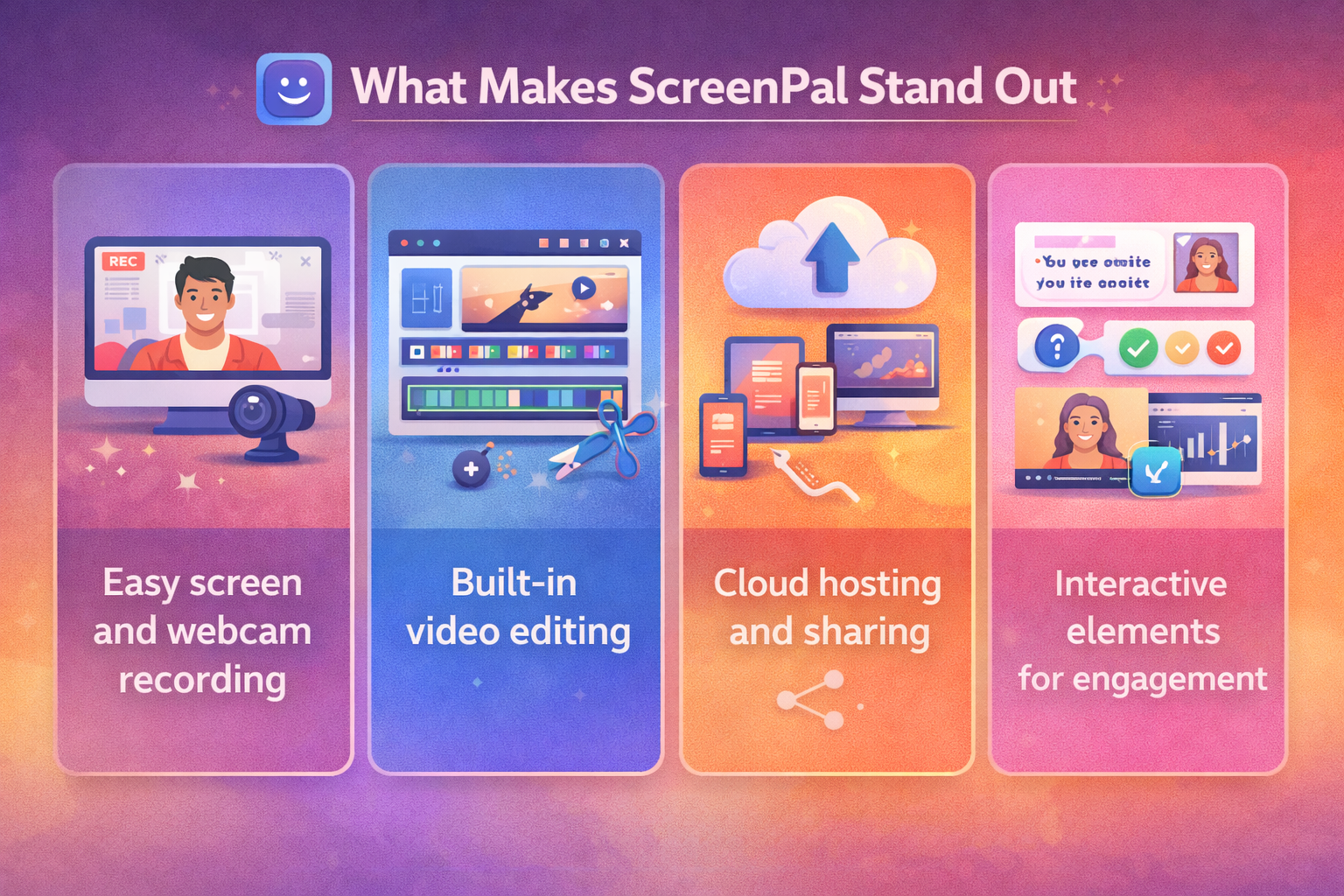
What Makes ScreenPal Stand Out
So why ScreenPal? Simple—it balances power with simplicity. While many tools overwhelm users with features, ScreenPal keeps things intuitive. You get:
- Easy screen and webcam recording
- Built-in video editing
- Cloud hosting and sharing
- Interactive elements for engagement
It’s like having a Swiss Army knife for screen recording—compact but loaded.
Getting Started with ScreenPal
Creating a ScreenPal Account
Getting started is refreshingly easy. Sign up using your email or Google account, and you’re in. No long forms. No unnecessary steps. Within minutes, you’re ready to record.
System Requirements and Compatibility
ScreenPal works smoothly on:
- Windows
- macOS
- Chromebooks
- iOS and Android devices
As long as your system supports basic video processing, ScreenPal runs without hiccups.
Installing ScreenPal on Different Devices
Download the desktop app for full features or use the browser-based version for quick recordings. Mobile apps are perfect for on-the-go creators who want flexibility.
Understanding the ScreenPal Interface
Dashboard Overview
The dashboard is clean and clutter-free. Your recordings, edits, and uploads are neatly organized. No hunting around like a lost tourist.
Key Tools and Navigation
You’ll find recording controls, editing tools, and sharing options right where you expect them. Everything is one or two clicks away.
Customizing the Workspace
Want dark mode? Custom shortcuts? Layout tweaks? ScreenPal lets you tailor the workspace so it feels like home.
How to Record Your Screen with ScreenPal
Full Screen Recording
Perfect for presentations or demos. Just click “Record,” select full screen, and you’re live. It’s as easy as pressing play.
Partial Screen and Window Recording
Need to focus on one app or browser tab? Select a custom area or window and keep distractions out of frame.
Webcam and Audio Recording Options
Combine screen, webcam, and microphone audio for a personal touch. It’s like having a mini studio on your laptop.
Editing Videos Like a Pro
Built-in Video Editor Features
Trim clips, cut mistakes, and rearrange scenes effortlessly. No need for external editing software.
Adding Text, Captions, and Annotations
Highlight key points with text overlays, arrows, and captions. It’s storytelling made visual.
Transitions, Effects, and Overlays
Smooth transitions and subtle effects keep your videos polished without feeling overproduced.
Advanced ScreenPal Features
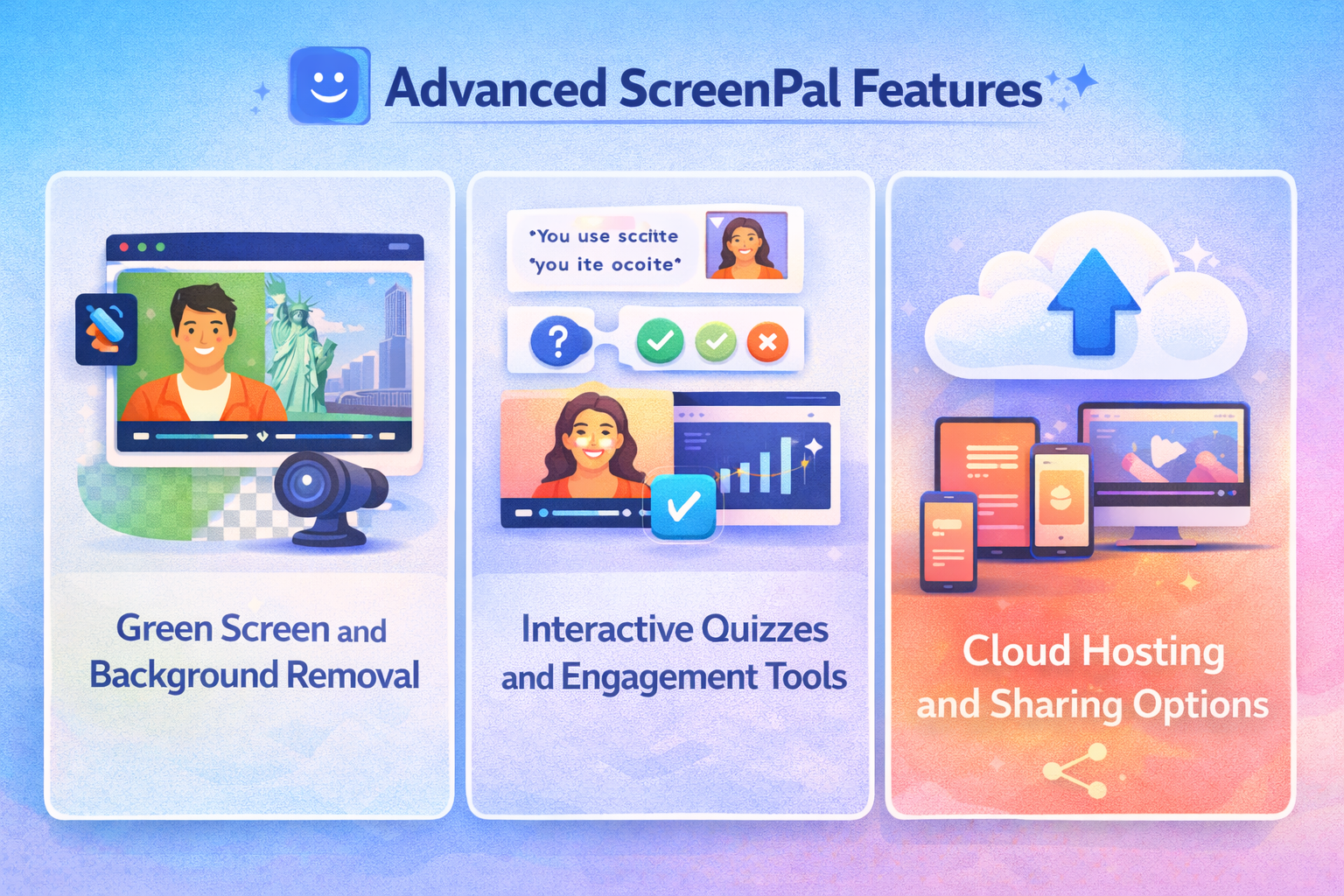
Green Screen and Background Removal
No fancy setup needed. Replace your background and look professional—even from your bedroom.
Interactive Quizzes and Engagement Tools
Perfect for educators and trainers. Add quizzes to keep viewers engaged and test understanding.
Cloud Hosting and Sharing Options
Upload once, share everywhere. Get links, embed videos, or export files in multiple formats.
ScreenPal for Different Use Cases
Educators and Online Teaching
Teachers love ScreenPal for lectures, assignments, and feedback videos. It turns lessons into experiences.
Business Presentations and Training
From SOPs to onboarding, ScreenPal simplifies knowledge sharing across teams.
Content Creators and YouTubers
Tutorials, reviews, walkthroughs—ScreenPal helps creators publish faster without compromising quality.
Tips to Improve Your Screen Recording Quality
- Use a good microphone
- Record in a quiet space
- Keep your screen clutter-free
- Speak clearly and confidently
Think of it like cooking—the ingredients matter, but presentation seals the deal.
Common Mistakes to Avoid
- Recording without a script
- Ignoring audio quality
- Overusing effects
- Forgetting to edit mistakes
Avoid these, and you’re already ahead of the curve.
ScreenPal Pricing Plans Explained
ScreenPal offers free and paid plans. The free version is great for beginners, while paid plans unlock advanced editing, hosting, and branding features.
Pros and Cons of Using ScreenPal
Pros
- Easy to use
- Affordable pricing
- All-in-one solution
Cons
- Advanced effects are limited
- Free plan includes watermarks
ScreenPal vs Other Screen Recording Tools
Compared to competitors, ScreenPal shines in usability and value. It may not replace Hollywood-grade editors, but for most users, it’s more than enough.
Is ScreenPal Worth It in 2026?
Absolutely. With continuous updates and user-focused features, ScreenPal remains a strong contender in the screen recording space.
Conclusion
ScreenPal isn’t just a tool—it’s a productivity booster. Whether you’re teaching, training, or creating, it helps you communicate clearly and effectively. Simple to use yet powerful enough to grow with you, ScreenPal truly enhances your screen recording game.
Frequently Asked Questions