Learn how to use Thrive Architect in WordPress to create high-converting, visually stunning pages without coding. This step-by-step guide covers installation, customization, landing page creation, and powerful conversion features to help you build professional websites using Thrive Architect.
Introduction to Thrive Architect
If you’re building a WordPress website and want complete control over design without touching code, you’ve probably heard of Thrive Architect. But how exactly do you use it? More importantly, how do you make good use of it?
What Is Thrive Architect?
Thrive Architect is a powerful drag-and-drop page builder plugin for WordPress. It allows you to design pages visually—meaning you see exactly what your visitors will see while editing.
No coding. No complicated layouts. Just click, drag, and customize.
Why It’s Popular Among WordPress Users
Because it focuses on conversions. It’s not just about pretty pages. It’s about turning visitors into subscribers, leads, and customers. That’s what makes it different.
Why Choose Thrive Architect Over Other Page Builders?
Conversion-Focused Features
Most page builders focus on design. Thrive Architect focuses on marketing and conversions. It includes built-in elements like countdown timers, lead generation forms, and call-to-action blocks.
It’s like having a marketing assistant built into your website.
Comparison With Other Builders
Speed and Performance
Thrive Architect is lightweight and optimized for performance. That means faster loading pages, which is crucial for SEO and user experience.
Marketing Integrations
It connects easily with popular email marketing tools. You don’t need extra plugins for basic integrations.
Installing Thrive Architect in WordPress
Purchasing and Downloading
First, purchase Thrive Architect from the official Thrive Themes website. After purchasing, download the plugin file.
Installing via WordPress Dashboard
- Go to your WordPress dashboard
- Click Plugins → Add New
- Click Upload Plugin
- Upload the ZIP file
- Click Install Now
Activating the Plugin
Once installed, click Activate. Then log in to your Thrive account to connect the license.
Done. Easy, right?
Understanding the Thrive Architect Interface
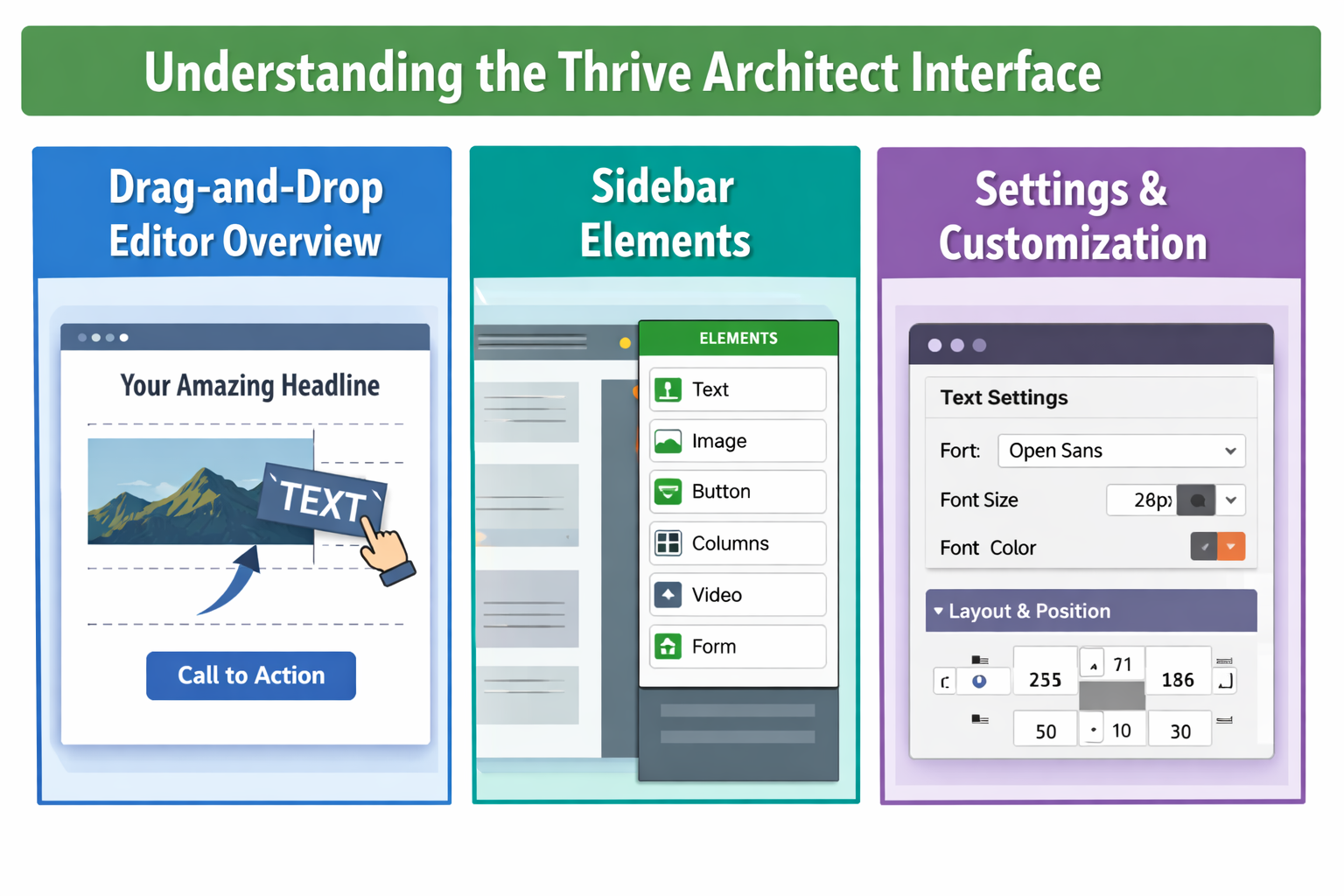
When you edit a page and click “Edit with Thrive Architect,” you’ll enter the visual editor.
Drag-and-Drop Editor Overview
The main screen shows your live page preview. On the left side, you’ll see elements you can drag onto the page.
It’s simple. Want to add text? Drag it in. Want a button? Drag it in.
Sidebar Elements and Settings
Click on any element, and customization options appear in the sidebar. You can adjust spacing, colors, fonts, alignment, and more.
It feels like designing in Canva—but for your website.
Creating Your First Page With Thrive Architect
Starting From Scratch
Create a new page in WordPress. Click “Edit with Thrive Architect.” Choose “Normal Page” and start building from a blank canvas.
This is perfect if you want full creative control.
Using Pre-Built Templates
Don’t want to start from zero?
Thrive offers professionally designed landing page templates. Just select a template, customize text and images, and you’re ready.
Think of it like using a blueprint instead of building from raw bricks.
Working With Thrive Architect Elements
Text and Image Elements
Drag the text element to add headings or paragraphs. Customize font size, color, and spacing instantly.
Add images by dragging the image element and uploading your file.
Buttons and Call-To-Action Blocks
Want visitors to click?
Add a button. Change its color, size, hover effect, and link destination.
Clear buttons = more clicks.
Columns and Layout Options
You can create multi-column layouts with just one click. Perfect for service sections or feature highlights.
Customizing Design and Styling
Typography Settings
Choose fonts that match your brand. Adjust line height and letter spacing.
Consistency builds trust.
Colors and Backgrounds
Set background colors, gradients, or even images. Use brand colors to maintain visual identity.
Mobile Responsiveness
Switch to mobile view and adjust spacing specifically for mobile users.
Over 50% of traffic is mobile. Don’t ignore this.
Using Conversion-Focused Features
Lead Generation Forms
Add opt-in forms directly on the page. Connect them to your email marketing service.
More subscribers. More opportunities.
Countdown Timers
Create urgency with timers for limited offers.
Scarcity drives action.
Testimonials and Social Proof
Add testimonial blocks to increase trust.
People trust people.
Integrating With Email Marketing Tools
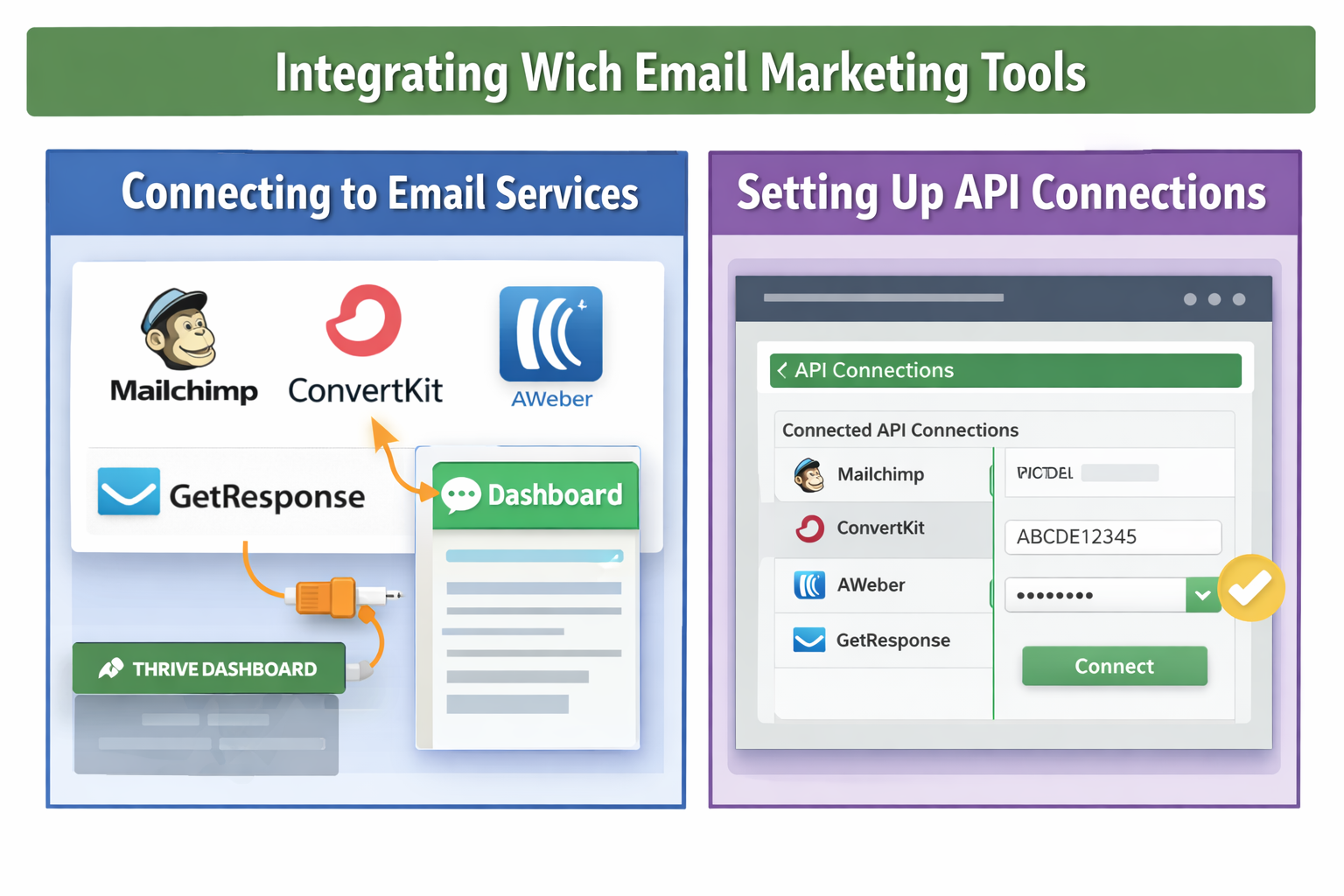
Connecting to Email Services
Go to Thrive Dashboard → API Connections. Add your email service API key.
Setting Up API Connections
Once connected, select your email list inside the lead generation element.
Now, new subscribers go straight to your list automatically.
Creating Landing Pages
Sales Pages
Use high-converting templates designed for sales funnels.
Webinar Registration Pages
Collect registrations easily with built-in forms.
Thank You Pages
After signup, redirect users to a thank-you page.
Simple funnel. Powerful results.
Saving and Reusing Templates
Saving Blocks
You can save any section as a template and reuse it on other pages.
Using Global Elements
Edit a global element once, and changes apply everywhere.
That’s a huge time saver.
Advanced Features of Thrive Architect
Dynamic Content
Insert dynamic text like post titles or author names automatically.
Animations and Hover Effects
Add subtle animations to make your pages more engaging.
Don’t overdo it. Keep it classy.
Optimizing Pages for SEO
Design without SEO is like a car without fuel.
Clean Code Structure
Thrive Architect produces clean HTML, helping search engines understand your content.
Speed Optimization Tips
- Compress images
- Avoid too many heavy elements
- Use caching plugins
Fast pages rank better.
Common Mistakes to Avoid
Overloading With Elements
Too many animations and sections slow down your site.
Keep it simple.
Ignoring Mobile View
Always check mobile view before publishing.
One bad mobile experience can lose a customer.
Conclusion
Thrive Architect makes building WordPress pages simple, visual, and conversion-focused.
It’s not just a page builder. It’s a marketing tool disguised as a design tool.
If you want pages that look great and convert better, it’s worth mastering.
Frequently Asked Questions