This beginner-friendly guide to monday.com explains everything new users need to know in 2026—from setting up boards and automations to using dashboards, integrations, templates, and team management tools. Learn how monday.com helps streamline workflows, boost productivity, and simplify project management for students, freelancers, and businesses alike.
Introduction to Fiverr
If you’re stepping into the world of project management, team collaboration, or productivity software in 2026, monday.com is one of the first tools you’ll hear about—and for good reason. This Work OS has become a global favorite because it takes the complexity out of managing tasks, workflows, and teams. It’s flexible, visually appealing, and designed for beginners and seasoned professionals alike.
This guide breaks down everything you need to know as a monday.com beginner in 2026, explained in a simple and friendly way.
What Is monday.com?
Cloud-Based Work OS Explained
monday.com is not just another project management tool. It’s a complete Work Operating System that lets you build workflows the way you want—visually and intuitively.
Who Uses monday.com?
From students to freelancers to enterprise-level companies like Coca-Cola and Canva, monday.com is used across:
- IT & software development
- Marketing & design
- Sales teams
- HR departments
- Operations & logistics
Why It’s Popular in 2026
monday.com’s popularity skyrocketed because of:
- Better automation tools
- AI-powered task suggestions
- Cross-platform stability
- Easier integrations
- Clean visual boards
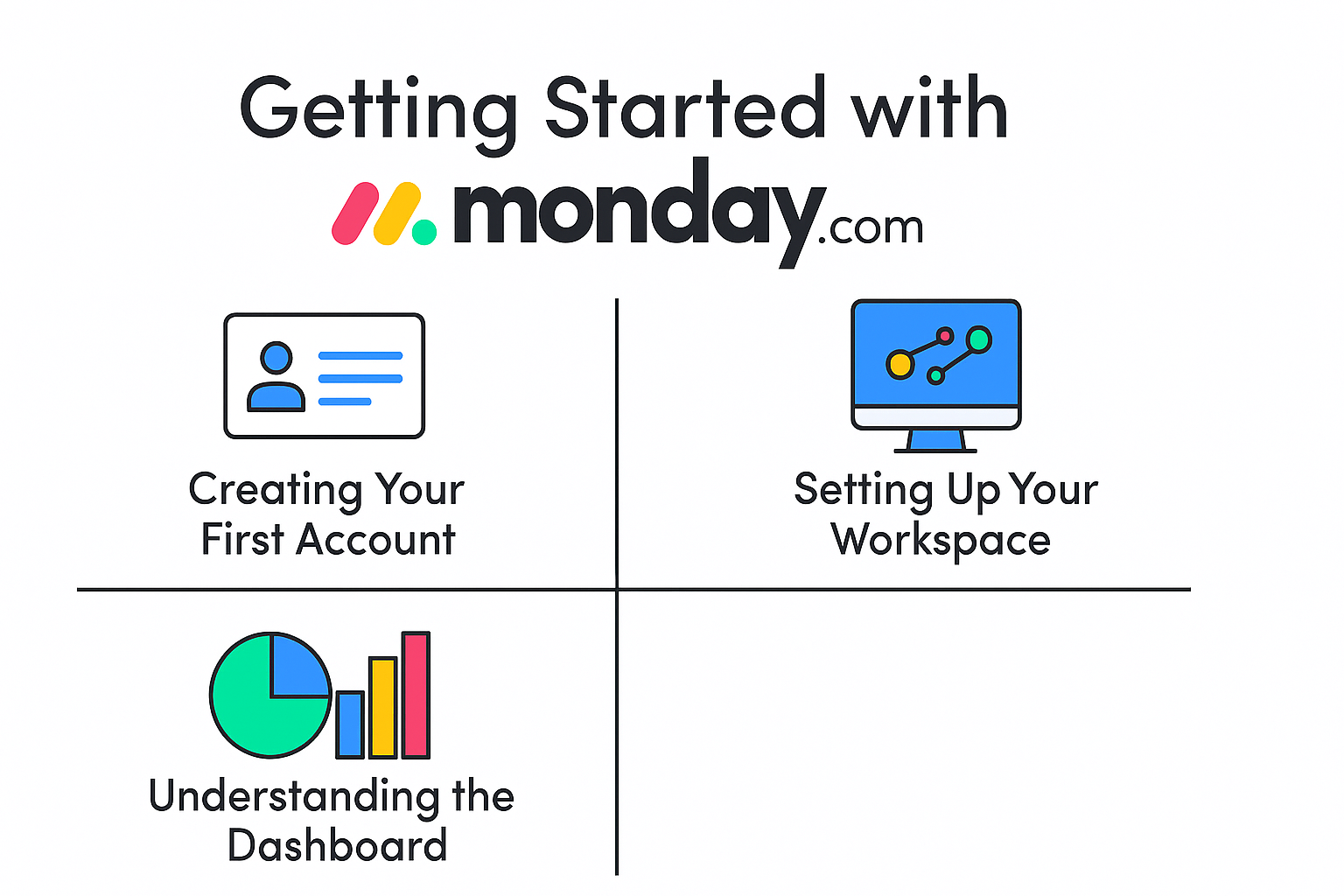
Getting Started with monday.com
Creating Your First Account
Signing up is easy—you can use Google, email, or Microsoft accounts to get started.
Setting Up Your Workspace
Once inside, you can:
- Name your workspace
- Create your first board
- Invite team members
Understanding the Dashboard
The dashboard acts as your command center, showing:
- Tasks
- Team workload
- Notifications
- Project timelines
Core Features Every Beginner Must Know
Boards
Boards are the heart of monday.com. Think of them as digital whiteboards where you track work.
Main Boards vs. Private Boards
- Main Boards: Visible to the whole team
- Private Boards: Restricted access for confidential work
Customizing Columns
You can add:
- Status columns
- Date columns
- Priority tags
- Text fields
- People assignments
Views
Kanban View
Perfect for organizing tasks in a to-do, in-progress, or done format.
Calendar View
Great for deadline lovers—see tasks sorted by dates.
Gantt Chart View
Ideal for project managers who want timeline-based planning.
Automations
Prebuilt Automation Recipes
Examples:
- “When status changes to Done → Notify team”
- “When due date arrives → Move item to another group”
Custom Automation Setup
Drag-and-drop automation builders let you create your own rules.
Integrations
Popular Integrations
monday.com integrates with:
- Google Drive
- Slack
- Teams
- Zapier
- Zoom
- Outlook
How Integrations Simplify Workflow
Integrations eliminate manual work—files sync automatically, messages trigger notifications, and meetings fill your calendar instantly.
Advanced Tools for Smarter Work
Workdocs for Collaborative Editing
Create team documents and brainstorm together in real time.
monday CRM for Sales Teams
Track leads, pipelines, and deals with ease.
monday Dev for Software Teams
Manage bugs, releases, and sprints.
monday Marketer
A toolkit designed for content calendars, campaign planning, and creative workflows.
Templates for Fast Setup
Best Templates for Beginners
Some excellent starter templates:
- Simple Task Tracker
- Weekly Planner
- Marketing Calendar
- Sales Pipeline
How to Customize Templates
You can adjust columns, add automations, or change views.
Industry-Specific Templates
Templates exist for:
- Real estate
- IT teams
- Event management
- Manufacturing
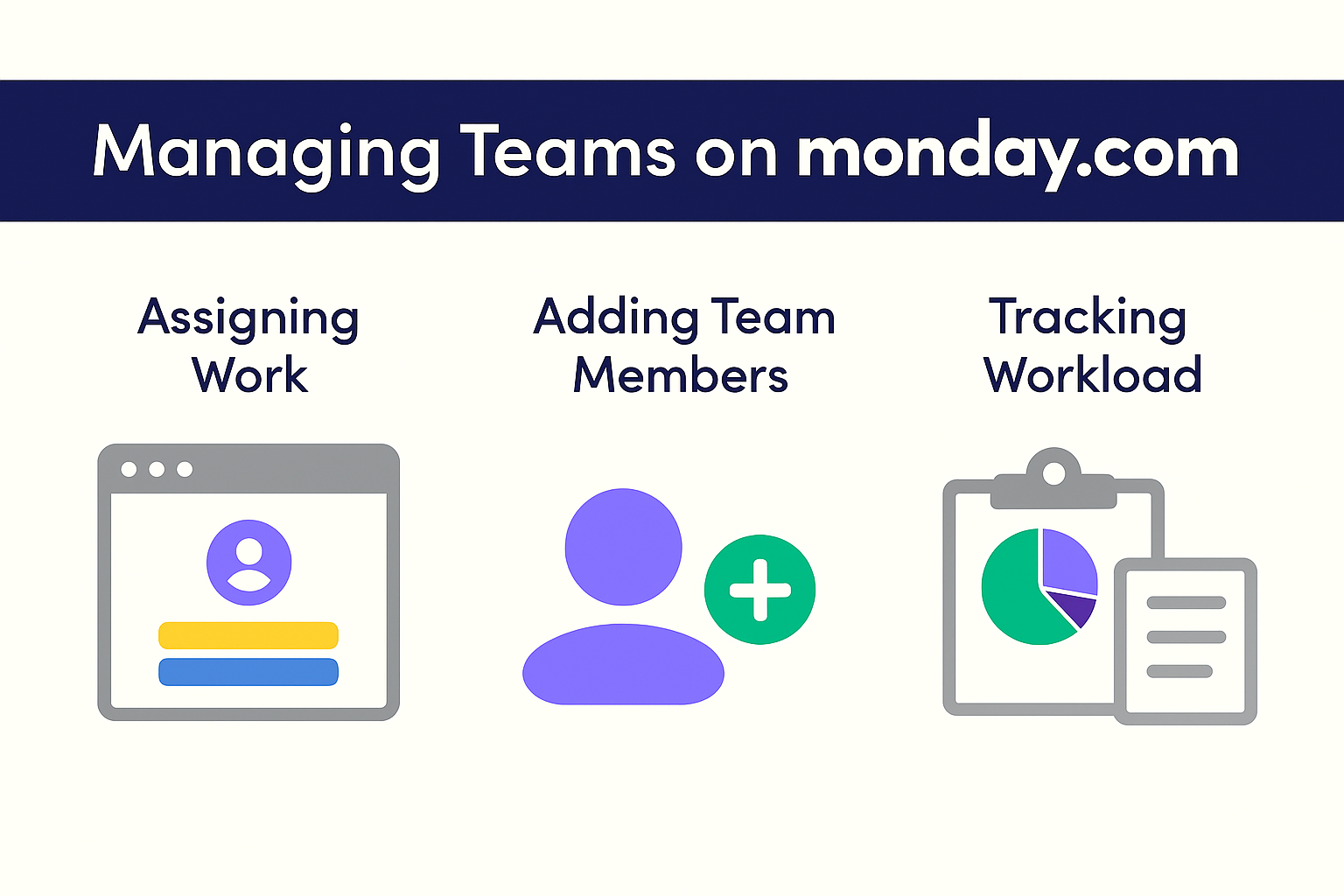
Managing Teams on monday.com
Assigning Work
Simply tag team members in the people column.
Adding Team Members
Invite via email and assign them to workspaces.
Tracking Workload
Use the Workload View to prevent overworked team members.
Project Tracking & Productivity Tools
Dashboards
Dashboards let you see the big picture:
- Deadlines
- Project status
- Productivity metrics
Metrics & Reporting
Track performance using charts, graphs, and KPIs.
Time Tracking Tools
Time-tracking columns help you measure how long tasks take.
Pricing Plans in 2026
Free Plan Overview
Great for beginners or small personal projects.
Basic Plan
Includes unlimited items and prioritized support.
Standard Plan
Most popular—includes timeline, calendar, and automations.
Pro Plan
Best for power users needing advanced analytics.
Enterprise Plan
Large-scale organizations receive security, admin controls, and custom solutions.
monday.com Mobile App
iOS & Android Features
You can update tasks, read notifications, and manage projects on the go.
Offline Work Capabilities
Work offline and sync once you’re back online.
Notifications & Task Alerts
Real-time alerts improve productivity and accountability.
Tips to Use monday.com Like a Pro
Use Keyboard Shortcuts
Shortcuts help you move faster.
Create Automation Rules
Automation eliminates repetitive tasks.
Use Color Codes & Tags
Color-coded workflows improve clarity.
Common Mistakes Beginners Make
Overcomplicating Boards
Start simple and scale as you grow.
Ignoring Automation
Automations save time—use them early.
Not Cleaning Up Old Data
Archive outdated boards regularly.
Is monday.com Right for You?
For Students
Track studies, assignments, and exam schedules.
For Businesses
Manage multiple teams and complex workflows.
For Freelancers
Keep client tasks organized and deliver work on time.
Conclusion
By 2026, monday.com has become the go-to Work OS for anyone who wants to work smarter, not harder. With visual workflows, automation, integrations, mobile access, dashboards, and customizable templates, it offers everything beginners need to manage work effortlessly. Whether you’re a student, business owner, marketer, or freelancer, monday.com has tools that fit your style and help you grow.
Frequently Asked Questions