Shift Browser Managing Pro Tips for Maximum Efficiency is a practical guide that shows how to use Shift smarter to organize apps, manage multiple accounts, reduce distractions, and boost daily productivity. Learn expert tips to streamline workflows, save time, and work with maximum focus using Shift Browser.
Introduction to Shift Browser and Modern Workflows
Let’s be honest—our browsers have turned into digital junk drawers. Ten tabs open, five accounts logged in, notifications popping like popcorn, and somehow we’re expected to stay focused. That’s exactly where Shift Browser steps in.
Shift isn’t just another browser. It’s more like a command center for modern work. If your day involves juggling Gmail, Slack, Notion, Trello, Asana, LinkedIn, and maybe three different Google accounts, this tool can feel like a breath of fresh air.
But here’s the catch: using Shift casually is fine, but managing it like a pro is where the real productivity gains live.
Why Browser Management Matters in 2026
Work has changed. We don’t “log off” anymore—we switch contexts. Fast. Repeatedly. Every tab switch costs focus, and every unnecessary notification steals attention.
Think of your brain like RAM. The more junk you load into it, the slower everything runs.
Browser management isn’t about being neat. It’s about protecting your mental bandwidth.
Understanding the Core Features of Shift Browser
What Makes Shift Different from Traditional Browsers
Traditional browsers focus on websites. Shift focuses on workflows.
Instead of tabs everywhere, Shift gives you:
- App-based navigation
- Multiple account separation
- Dedicated workspaces
- Centralized notifications
It’s like turning a messy desk into labeled drawers.
Who Should Use Shift Browser
Shift shines for:
- Remote professionals
- Digital marketers
- Developers
- Freelancers and agencies
- Founders and startup teams
- Anyone managing multiple accounts daily
If you’ve ever sent an email from the wrong account… you already need Shift.
Common Productivity Problems Shift Solves
- Constant logins and logouts
- Tab overload
- Missed messages
- Context switching fatigue
- Account confusion
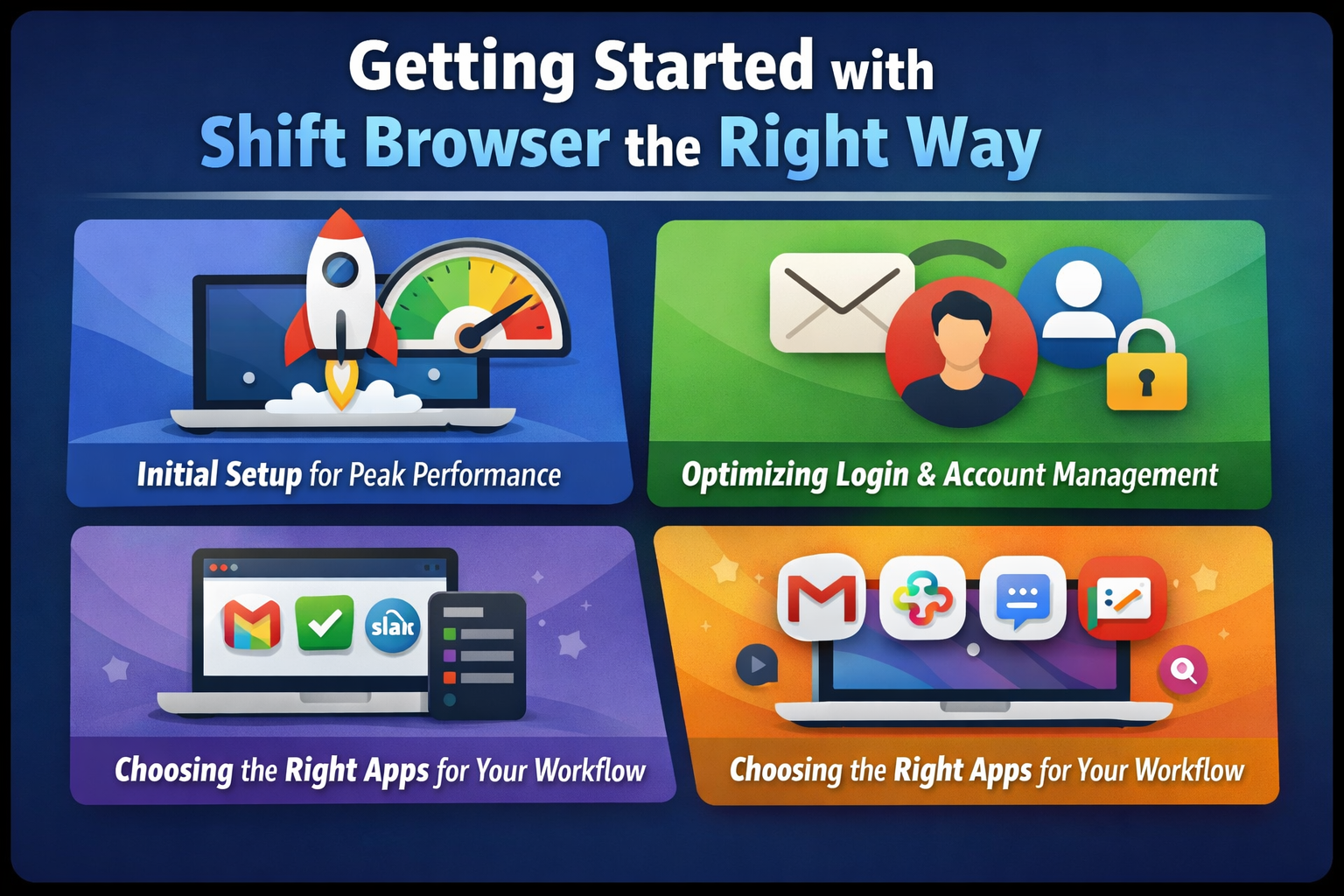
Getting Started with Shift Browser the Right Way
Initial Setup for Peak Performance
Most people rush setup. Don’t.
Start with:
- Only essential apps
- One workspace first
- Clear naming conventions
Build slow. Scale smart.
Optimizing Login and Account Management
Add all accounts upfront:
- Work email
- Personal email
- Client accounts
Shift handles separation beautifully—if you let it.
Choosing the Right Apps for Your Workflow
Pro rule: if an app doesn’t earn daily use, it doesn’t belong in Shift.
This isn’t an app museum.
Mastering Workspaces for Deep Focus
Creating Workspaces by Role or Project
The golden rule: one mental mode = one workspace.
Examples:
- Admin
- Client A
- Client B
- Marketing
- Development
Your brain loves boundaries. Give it some.
Switching Between Workspaces Efficiently
Use keyboard shortcuts instead of clicking. It feels slow at first, then suddenly… lightning fast.
Workspace Naming and Color-Coding Strategy
Names should be obvious. Colors should be consistent.
Your eyes should know where you are before your brain does.
Pro Tip: Minimalist Workspace Design
Less apps = more focus. If a workspace has more than 6–7 apps, it’s bloated.
Advanced App and Tab Management Techniques
Pinning vs Closing: Knowing What to Keep
Pin:
- Daily-use apps
- Reference tools
Close:
- Temporary research
- One-time tools
Tabs are like snacks—fine in moderation, dangerous in bulk.
Using App-Specific Notifications Wisely
Not every ping deserves attention.
Turn off:
- Marketing alerts
- Social noise
Keep:
- Direct messages
- Task updates
Handling Multiple Accounts Without Confusion
Label accounts clearly. Use profile photos. Never assume “I’ll remember.”
Future-you won’t.
Keyboard Shortcuts That Save Hours Every Week
Essential Shift Keyboard Shortcuts
Shortcuts are compound interest for productivity. Small gains. Massive payoff.
Custom Shortcut Optimization
Customize shortcuts around your habits, not default settings.
Building Muscle Memory for Speed
Force yourself for one week. After that, it’s automatic.
Notification Control for Distraction-Free Work
Setting Priority-Based Notifications
Not all notifications are equal. Treat them that way.
Muting Without Missing Critical Updates
Use scheduled mute times. Deep work needs silence.
Creating Notification Rules
Rules beat willpower. Every time.
Automation and Workflow Hacks
Daily Startup Routines in Shift
Morning routine:
- Open primary workspace
- Review inbox
- Check tasks
No thinking required.
End-of-Day Shutdown Systems
Close workspaces. Clear tabs. Reset your mind.
Mental closure matters.
Using Shift with Task and Calendar Tools
Sync tasks and calendars to reduce app hopping. One screen. One flow.
Security, Privacy, and Account Safety Tips
Managing Passwords Securely
Use a password manager. Always.
Avoiding Cross-Account Mistakes
Double-check accounts before sending anything important. Shift helps—but habits seal the deal.
Best Practices for Remote Teams
Standardize workspace structures across teams. Chaos scales fast.
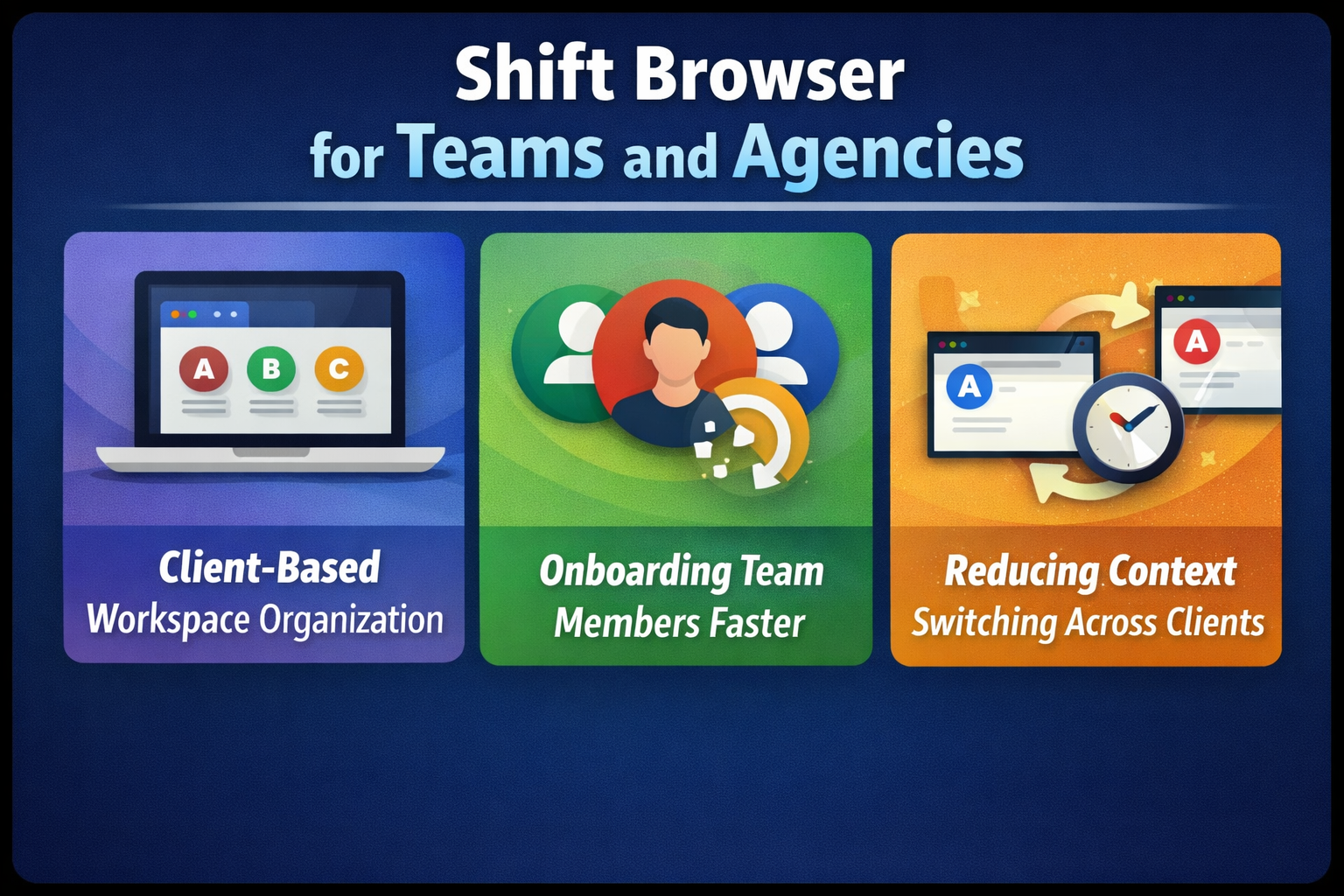
Shift Browser for Teams and Agencies
Client-Based Workspace Organization
One client = one workspace. No exceptions.
Onboarding Team Members Faster
Predefined workspace templates save days of training.
Reducing Context Switching Across Clients
Switch workspaces, not mental gears. Huge difference.
Common Mistakes to Avoid When Using Shift
Overloading Workspaces
More apps ≠ more productivity.
Ignoring Notification Settings
This turns Shift into just another noisy browser.
Treating Shift Like a Regular Browser
It’s not Chrome with a fancy skin. Use it properly.
Measuring Productivity Gains with Shift
Time Saved vs Time Spent
Track:
- Task completion time
- Context switching frequency
Focus Quality Metrics
Fewer interruptions = deeper work.
Long-Term Efficiency Improvements
The real gains show after 30–60 days.
Future-Proofing Your Workflow with Shift
Adapting as Workloads Grow
Review workspaces quarterly. Prune aggressively.
Scaling Systems Without Burnout
Systems reduce stress. Chaos multiplies it.
Conclusion
Shift Browser isn’t magic—but managed correctly, it feels close. The difference between “using Shift” and mastering it is the difference between feeling busy and actually being productive.
Treat your browser like a workspace, not a dumping ground. Set boundaries. Build systems. And let Shift do what it does best—keep your work organized, focused, and efficient.
Frequently Asked Questions